
Time and Smart Date Recognition
A task can have a time of day. Set it in the task card, or just type it into the title: 9:30 Standup becomes a task called Standup at 9:30.
The time is shown before the title in your time format (how to switch). With Sort timed tasks on, tasks with a time stand on top of the day in time order (how Tweek sorts tasks).
Add a time in the task card
On the web, open a task and click the clock icon next to its date, then pick a time from the list. To set a time that isn’t in the list, open it again, click the task’s current time and type any time, like 9:40, then press Enter. To change the time, click it next to the date; to clear it, click Remove at the bottom of the list.
Setting a time in the card is on the web for now; the iPhone and Android apps will get it in an update. In the apps, type the time into the title with Smart Date Recognition on.
Type the time into the title
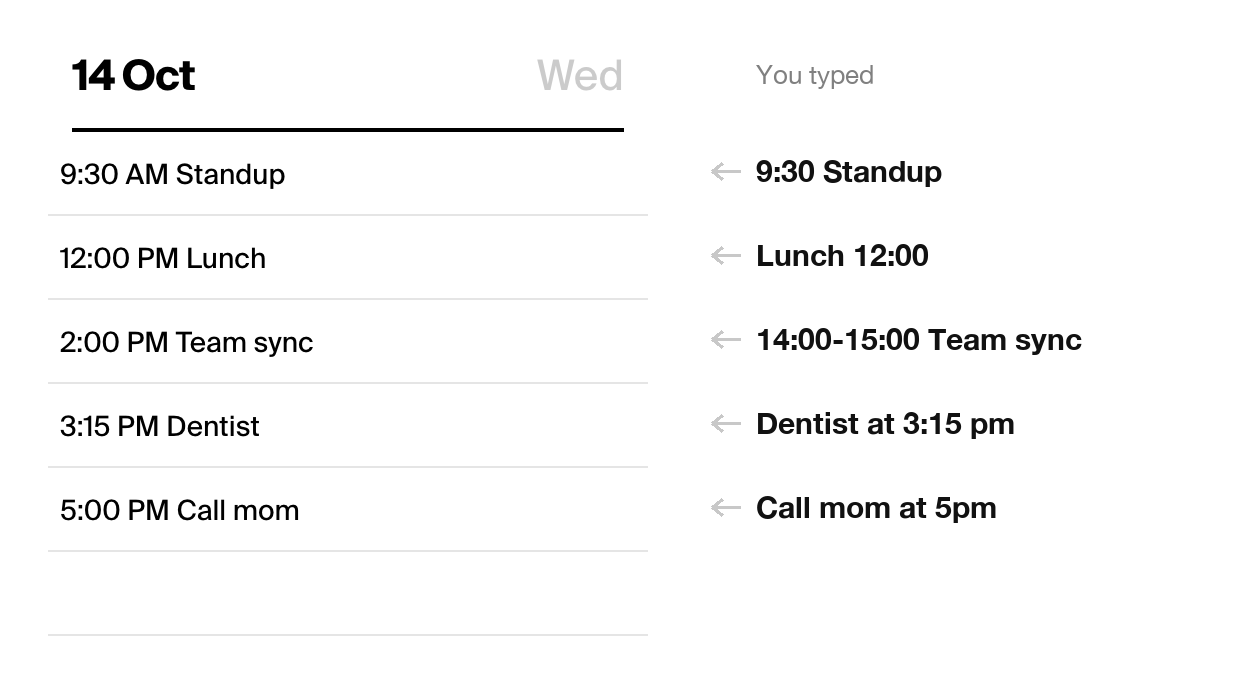
Smart Date Recognition reads the time from the title, so you don’t have to open the card. Put the time at the start or at the end:
- You type 9:30 Standup → you see 9:30 AM Standup
- You type Lunch 12:00 → you see 12:00 PM Lunch
- You type Call mom at 5pm → you see 5:00 PM Call mom
- You type Dentist at 3:15 pm → you see 3:15 PM Dentist
- You type 14:00-15:00 Team sync → you see 2:00 PM Team sync
With the 24-hour clock you see 09:30 Standup and 14:00 Team sync. Both 12- and 24-hour clocks work, and a range gives the task its start time.
What stays as you typed it
Smart Date Recognition only reads a time when it is clearly a time, so these stay in the title as written:
- a deadline: Submit report by 18:00, Run till 6pm
- numbers that aren’t a time: Buy 2 tickets, Call 5-10 minutes
- a time in the middle of the title: Move 10:00 meeting to Friday
- a date: Mom’s birthday 12.05
- a title that is only a time: 17:30
Tasks that already have a time, repeating tasks, Someday tasks, and tasks from Google Calendar, Outlook or Apple Reminders are never changed.
Turn on Smart Date Recognition
It’s off by default for most accounts. On the web, go to Settings → General and switch on Smart Date Recognition. Switch it off again and a time you type stays in the title as written.
The setting follows your account, so it applies to tasks added from the web, the mobile apps, the API and the AI assistant alike. In a shared calendar, the calendar owner’s setting counts. The switch is on the web for now; the mobile apps will get it in an update.
Reminders and moving
A time doesn’t set a reminder by itself. Open the reminder on a task with a time and Tweek suggests one an hour before it (how to set a reminder).
Drag a task with a time to another day and it keeps its time; moving it to Someday clears the time. Uncompleted tasks with a time are not moved to today automatically (moving uncompleted tasks).
Which tasks can have a time
You set a time for one-off Tweek tasks. Repeating tasks can’t get a time in the card. Events from Google Calendar, Outlook, Apple Calendar and Reminders show their own time; change it in that calendar.